
Move from Monica Classic
Bring the people you recorded in Monica Classic, the earlier version of Monica, into this one.
Monica Classic is also called Monica 4, and that is the name the import screens use. The move takes two steps: you export your data from Monica Classic as one file, then you import that file here. Nothing is written into Monica until you have seen what the file holds and chosen where it goes, so you can read the file first and decide afterwards.
Before you start#
- A Monica account. If you do not have one yet, follow Create your account first.
- Access to your Monica Classic account. You need to sign in to it once more, to ask for the export.
- A vault for the data, or room for a new one. The import writes everything into a single vault, either one you already have or a new one it creates. The free plan limits how many contacts and vaults an account holds, as Limits and defaults lists. If the file holds more contacts than the plan allows, or a new vault would go over it, Monica refuses to start and says which limit stands in the way.
Export your data from Monica Classic#
Monica Classic offers two exports. Choose Export to Json. The SQL export is meant for people who run Monica Classic on their own server, and Monica cannot read it.
-
Open the export screen
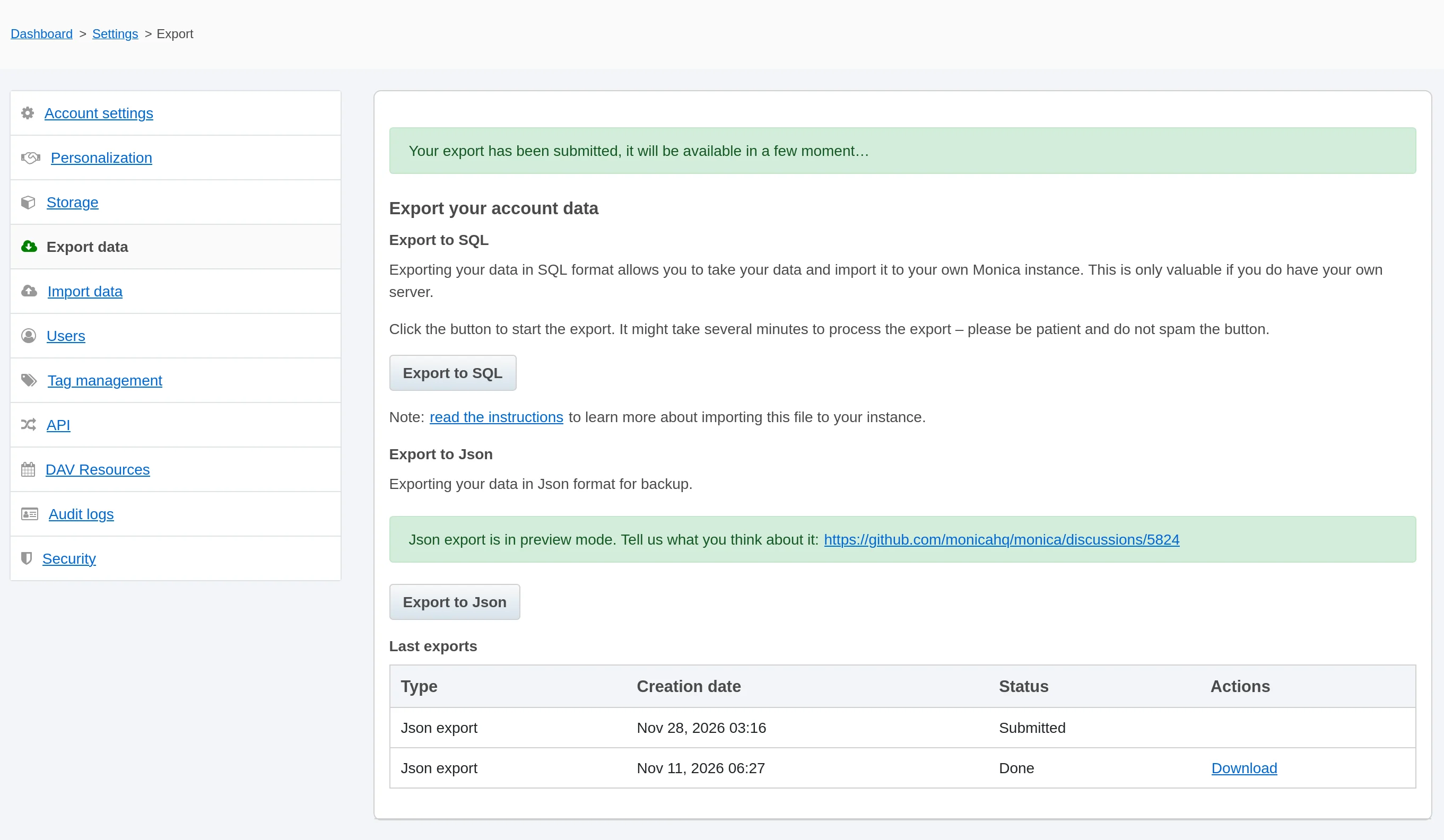
Sign in to Monica Classic, open Settings, then choose Export data.
-
Ask for the JSON export
Under Export to Json, choose Export to Json. Monica Classic says Your export has been submitted, and the export appears under Last exports as Submitted.
-
Wait for the email
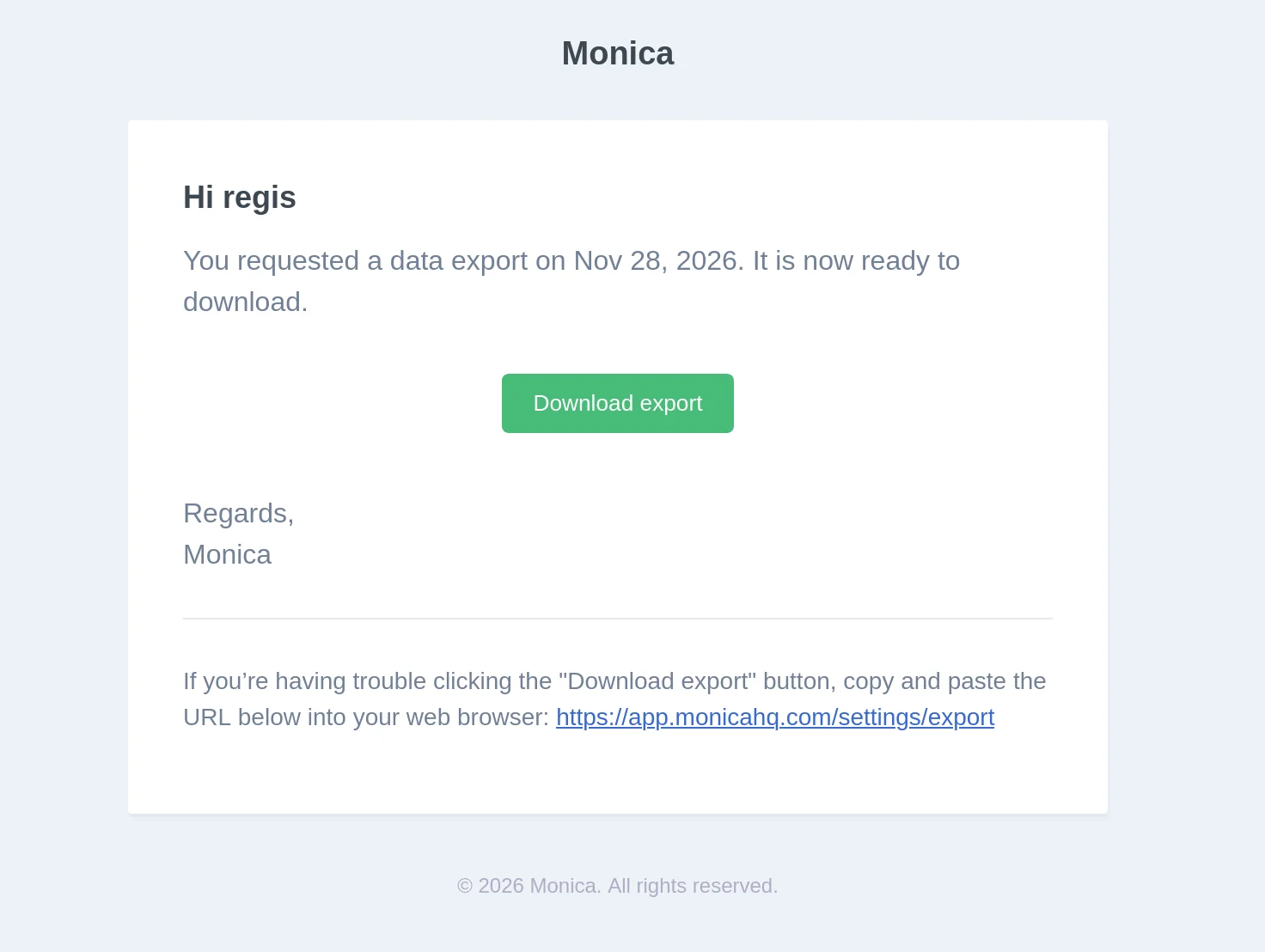
Preparing the file takes a few minutes. Monica Classic sends you an email when it is ready.
-
Download the file
Choose Download export in the email, or Download next to the export on the Export data screen. You get a file ending in
.json. Keep it somewhere you will find it.
Warning
The file is not encrypted. It holds everything in your Monica Classic account, so anybody who gets hold of it can read all of it. Delete it once the import is finished.
Read the file in Monica#
Monica reads the whole file first and tells you what it holds. This step writes nothing.
-
Open Export and import
In Monica, open your settings and choose Export and import.
-
Choose the file
Under Import, choose the
.jsonfile you downloaded in The export file, then choose Read this file. Monica asks for your password or your passkey first, because the file holds a whole account. The file can be up to 512 MB. -
Check what the file holds
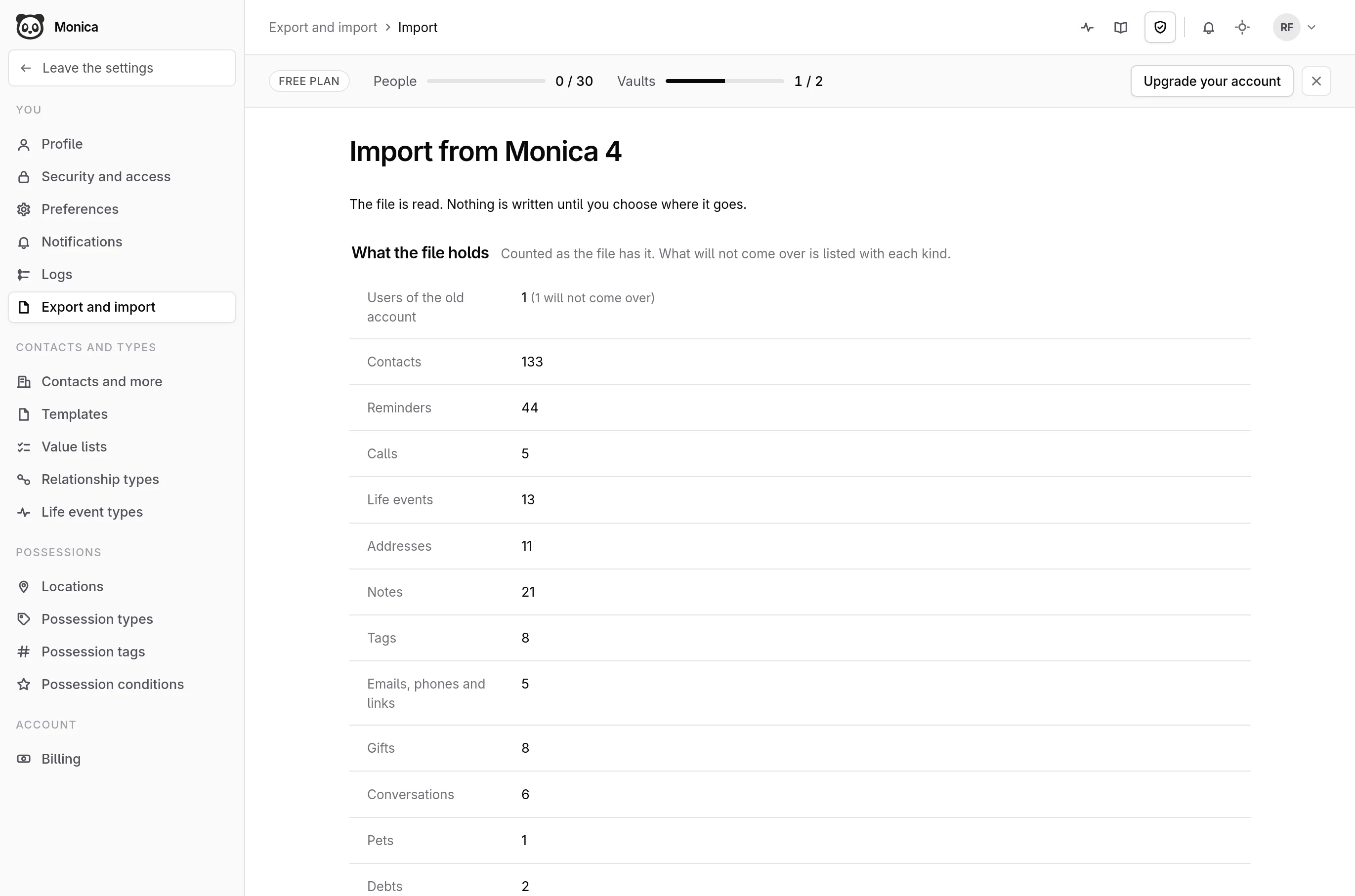
The Import from Monica 4 screen opens. Under What the file holds, Monica counts each kind of thing in the file: contacts, reminders, notes, life events, relationships and so on. Where something will not come over, the count says so next to it.
If Monica cannot read the file, it says why, and nothing is written. The most common reason is a file that is not a JSON export of Monica Classic, such as the SQL export. Export it again as JSON and upload the new file.
Why some things will not come over#
Under Why some things will not come over, Monica gives the reason and the number of things each reason covers. The two you will see most often are these:
- The same relationship, seen from the other side, came over once. Monica Classic recorded each relationship twice, once from each person. Ross is Emma’s parent, and Emma is Ross’s child: Monica records that once, and it shows on both pages.
- Nothing of this kind is kept in a vault. Some things belonged to the Monica Classic account rather than to the people in it, such as its other users, its history of changes and its reminder rules. Monica has no place for them in a vault.
Read this list before you start. If something you care about is listed, you can still keep the file and decide later.
Choose where it goes#
-
Pick a vault
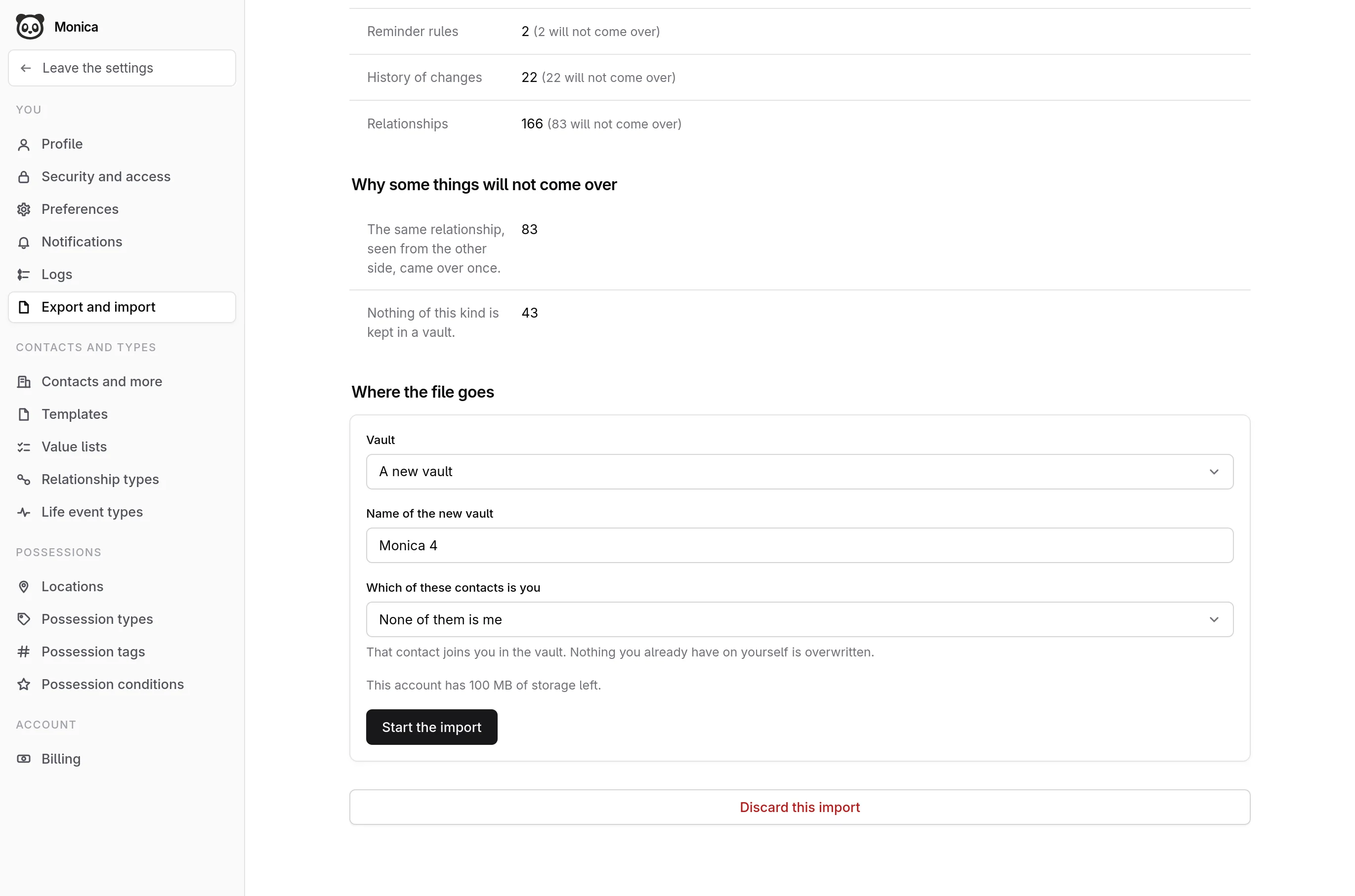
Under Where the file goes, in Vault, keep A new vault to put everything in a vault of its own, and give it a name in Name of the new vault. Or pick a vault you already have to add the people to it.
-
Say which contact is you
In Which of these contacts is you, pick the contact that stands for you in Monica Classic, if there is one. That contact joins you in the vault, and nothing you already recorded about yourself is overwritten. Choose None of them is me otherwise.
-
Start the import
Choose Start the import. Monica shows its progress and writes the file into the vault. You can leave the screen: Monica sends you an email when it is finished.
When your plan allows another vault, a new one is the safer choice the first time. Everything from Monica Classic stays together, and if the result is not what you wanted, you can delete that vault without touching anything else, as Delete a vault explains.
If you do not want to go on, choose Discard this import at the bottom of the screen. The uploaded file is deleted, and nothing was written to any vault. A file you neither start nor discard is discarded after seven days.
Note
If you import the same file twice, Monica warns you that it was imported before. Importing it again adds a second copy of everything it holds.
Check what came over#
When the import is finished, the screen says The import is finished and shows What came over, kind by kind, with what came over and what was left out.
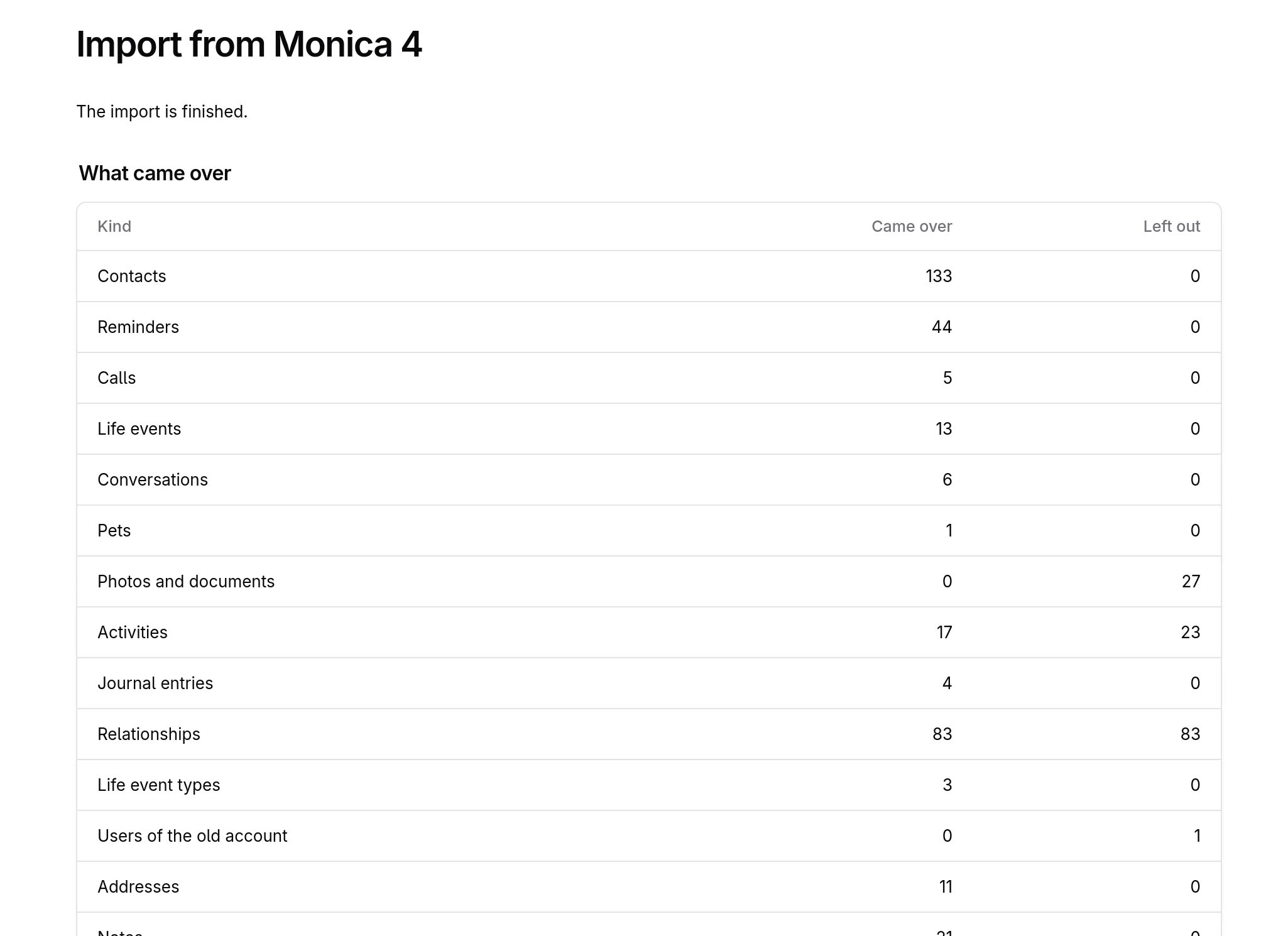
Under Left out, and why, Monica lists the things that did not come over, each with its reason. For example, a reminder for a single date that has already passed is left out, and so are photos and documents when this Monica does not keep files.
Choose Open the vault to see your people. You can find the import again at any time under Earlier imports, on the Export and import screen.
If you stop an import while it is running, with Stop the import, Monica removes everything it had written so far, and your account is as it was before it started.
What to do next#
- Look through your people in the vault, as Find people in a vault shows.
- If the same person was in Monica already, Review possible duplicates finds them for you.
- Read How Monica is organised to see how the people you brought over are organised.